
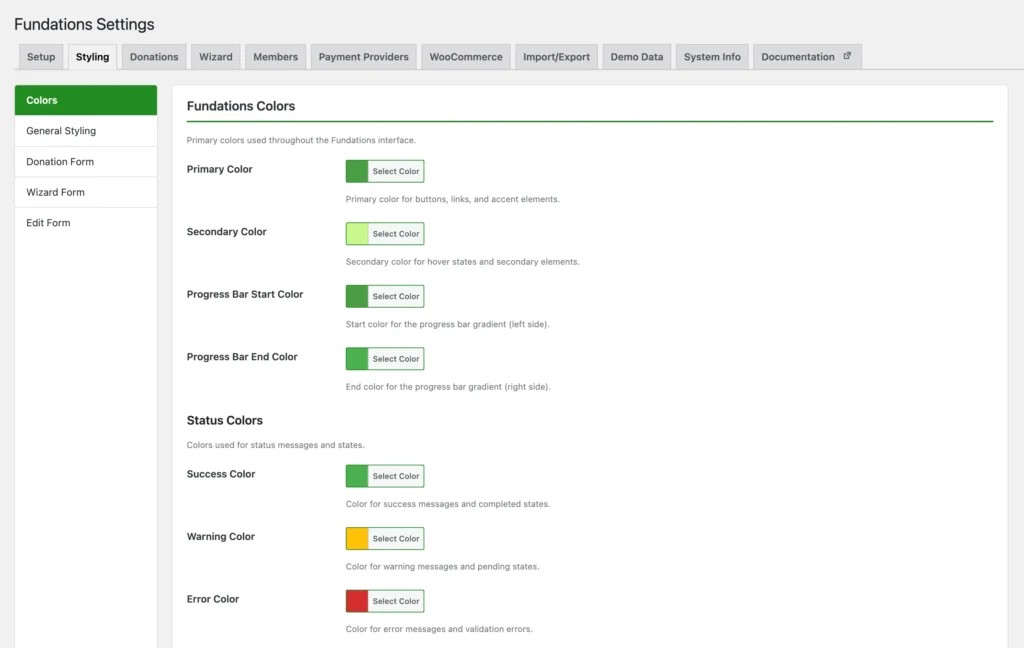
Fundations registers an optional “Fundations” color scheme for the WordPress admin. When selected, it replaces the default WordPress admin palette with a dark charcoal and forest green theme. This is a free feature.
Why use this
The admin color scheme gives site administrators and fundraiser-role users a visual cue that they are working inside a Fundations-configured site. It is purely cosmetic and has no effect on plugin behaviour.
What it does
Registers the scheme via wp_admin_css_color() on admin_init. The color palette is:
| Purpose | Value |
|---|---|
| Base background | #1d2327 (dark charcoal) |
| Secondary background | #2c3338 |
| Accent | #228B22 (forest green) |
| Highlight | #ccf88e (lime green) |
| Icon base | #a7aaad |
| Icon focus | #ccf88e |
| Icon current | #ffffff |
The scheme is loaded from admin/css/get-fund-color-scheme.css.
How to use it
- Log in to the WordPress admin.
- Go to Users > Your Profile.
- Find the Admin Color Scheme section.
- Select Fundations.
- Scroll down and click Update Profile.
The selection is per-user. Other users on the site are not affected.
What you can and cannot do
You can:
- Select the scheme per user independently of other users.
- Continue using any other WordPress color scheme instead.
You cannot:
- Force the scheme on all users automatically (WordPress does not support that without custom code).
- Modify the scheme colors through the Fundations settings panel; the CSS file must be edited directly.
Troubleshooting
Scheme does not appear in the profile list. Deactivate and reactivate the Fundations plugin, then flush your browser cache.
Colors look wrong after a plugin update. Browser cache may be serving the old CSS. Hard-refresh with Ctrl+Shift+R (Windows/Linux) or Cmd+Shift+R (Mac).