
The edit form lets a fundraiser creator update their own page from the public site without ever entering the WordPress admin. It is a free feature available on any site running Fundations.
Why use this
Fundraisers change over time. Goals get revised, descriptions need updating, and gallery images come and go as a campaign progresses. The edit form puts those controls directly in the hands of the creator, on the same public-facing site their donors visit, with no admin access required.
What it does
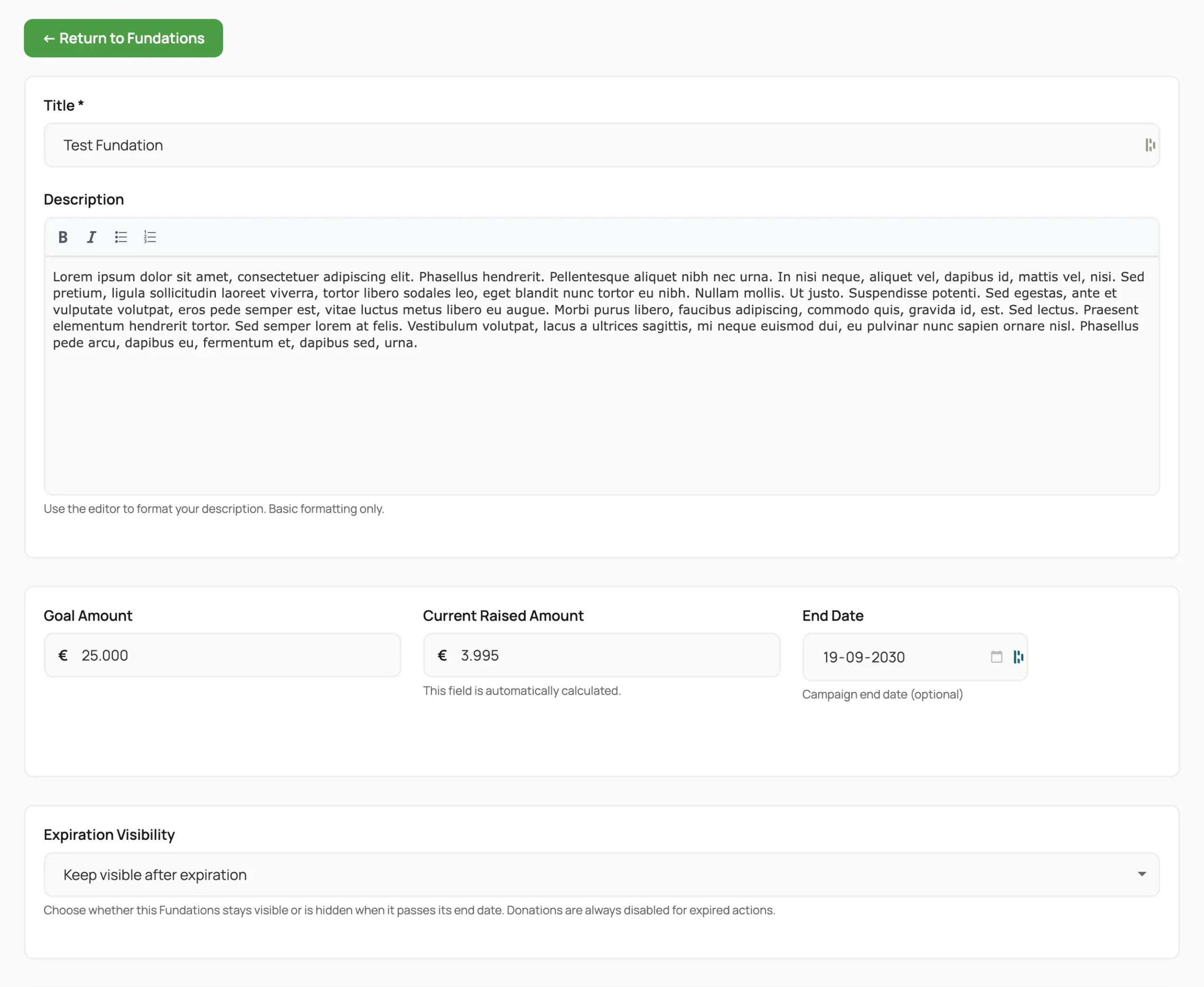
When a logged-in creator visits their fundraising page, an edit button appears linking to the dedicated edit page. That page renders a form pre-populated with all current field values. On save, the plugin validates the data, updates the post and its meta, handles any new image uploads, and redirects back to the edit page with a confirmation message.
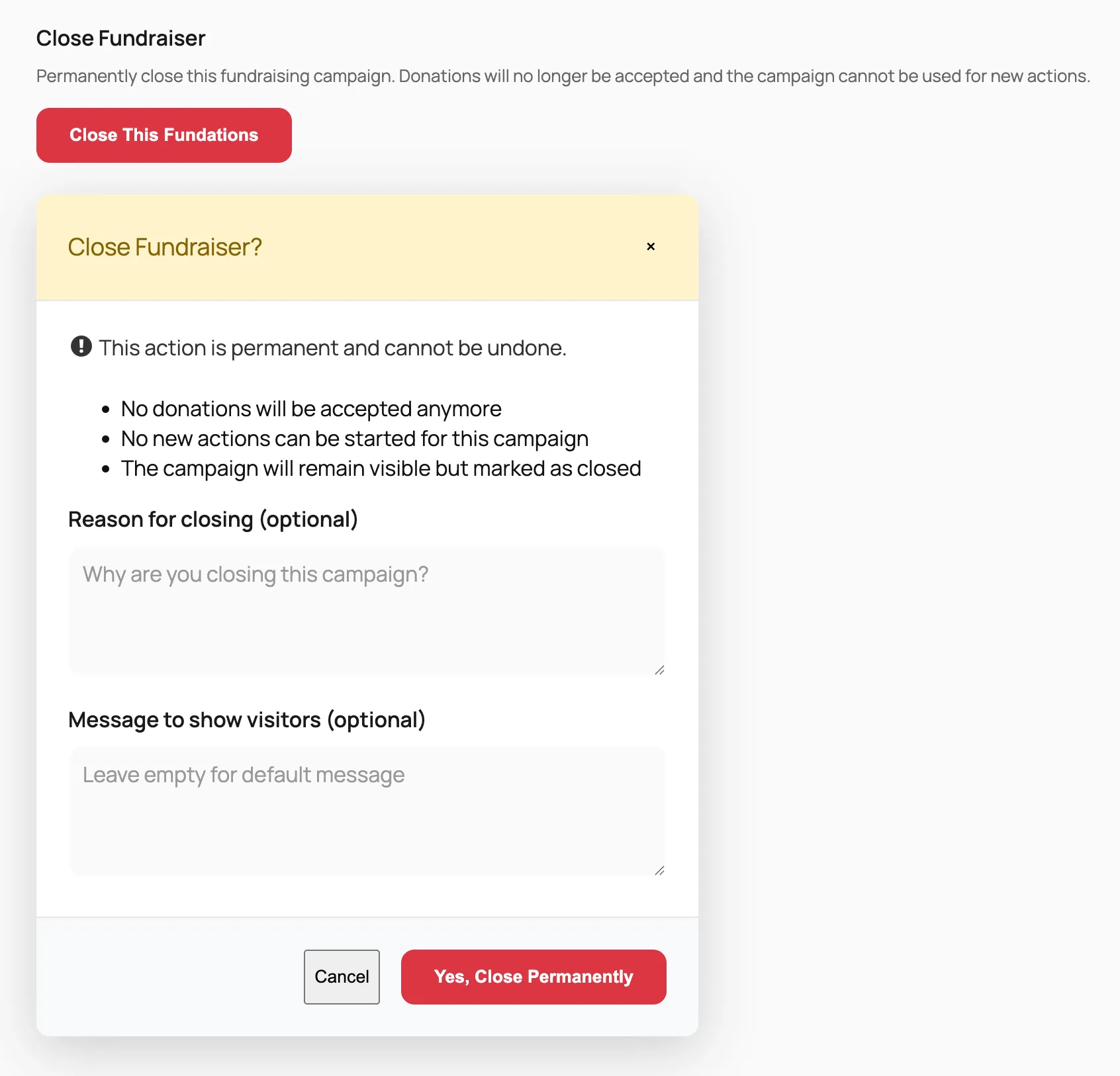
Creators can also close their fundraiser from this form using a modal confirmation dialog.
How to use it
From the creator’s perspective:
- Log in to the site.
- Navigate to your fundraising page.
- Click the Edit button (rendered by the Edit button block).
- The edit page opens with all current values filled in.
- Make your changes to any of the available fields.
- Click Save changes.
- The page reloads with a confirmation notice at the top.
If the edit button does not appear, you are either not logged in or you are not the creator of that particular page. See the Permissions section below.
Editable fields
| Field | Type | Notes |
|---|---|---|
| Title | Text | Required. |
| Description | WYSIWYG (TinyMCE) | Bold, italic, and lists only. Gutenberg block markup is stripped before the editor loads. |
| Goal amount | Number | Whole numbers, formatted with a thousands separator. Currency symbol is taken from your Fundations currency setting. |
| End date | Date picker | When the action is expired, saving a new date reactivates it, provided the Allow creators to extend setting is on. |
| Featured image | File upload | Replaces the current featured image. Accepted types: JPEG, PNG, WebP. Max 5 MB. |
| Gallery images | Multi-file upload | Drag to reorder. Click the remove icon to delete an individual image. Total count is capped by the gallery max images setting. |
| Anonymous creator | Checkbox | Hides the creator’s name on the public page when checked. Stored in _get_fund_creator_anonymous. |
| Disable children | Checkbox | Campaign use. Prevents new fundraisers from joining this campaign. Non-admins can only disable, not re-enable. |
| Expiration visibility | Dropdown | Controls whether the page is shown or hidden after expiry. Appears only when the Allow creators to choose setting is on, or when the current user is an administrator. |
| Event assignment | Select2 picker | Appears only when Event creation is set to All users in settings. |
| Campaign updates | Rich text (inline TinyMCE) | Add, edit, and delete multiple updates. Each update is stored as a separate entry. |
Settings
These options are found in Fundations > Settings.
| Option key | Default | Description |
|---|---|---|
get_fund_edit_page_id | (auto) | Page ID of the auto-created edit page. Set automatically on plugin install. |
get_fund_edit_form_input_bg | #ffffff | Background color of the editor fields. |
get_fund_edit_form_input_text | #333333 | Text color inside the editor fields. |
get_fund_edit_form_input_border | #e0e0e0 | Border color of the editor fields. |
get_fund_expiration_creator_can_extend | true | When enabled, creators can save a new end date on an expired action to reactivate it. |
get_fund_expiration_creator_can_choose | false | When enabled, creators see a dropdown to control expiration visibility. |
get_fund_event_creation | admin_only | Set to all_users to show the event assignment picker to creators. |
Closing a fundraiser
At the bottom of the edit form there is a Close fundraiser button. Clicking it opens a confirmation modal where the creator can optionally enter:
- A closure reason (internal note).
- A visitor message shown on the page after closing.
Confirming sets _get_fund_status to closed and fires the get_fund_action_closed action hook. Administrators can reopen a closed action from the WordPress admin. Non-admins cannot reopen from the frontend. From the creator’s point of view, closure is permanent.
Permissions
To access the edit form, a user must be logged in and meet at least one of the following conditions:
- They are the post author (creator) of the fundraising page.
- They have the
edit_others_postscapability (typically editors and administrators).
If neither condition is met, the form is not rendered and the user sees no edit button.
You can override this check using the get_fund_user_can_edit_action filter (see Developer reference).
What you can and cannot do
You can:
- Edit all listed fields from the public site without WordPress admin access.
- Reactivate an expired action by saving a new end date (when the setting permits it).
- Reorder gallery images by dragging them.
- Delete individual gallery images without replacing the whole set.
- Add multiple campaign updates using the inline rich text editor.
- Override the permission logic with a filter hook.
You cannot:
- Reopen a closed fundraiser from the frontend (admin only).
- Re-enable child actions once disabled, unless you are an administrator.
- Use Gutenberg block markup in the description editor. The TinyMCE editor only supports bold, italic, and lists.
- Change the URL slug of the fundraising page.
- Transfer ownership of the page to a different user from the frontend.
Troubleshooting
The edit button does not appear on my page. Confirm you are logged in as the post author. If you are logged in and still do not see it, check that the Edit button block is present in the block template assigned to get_fund_action posts. You can also verify your user ID matches the post_author field in the database, or ask an administrator to check via Fundations > Settings > Pages that the edit page was created correctly.
Saving redirects back to the form but shows no confirmation message. The plugin redirects to the edit page with ?updated=1 appended to the URL. If your server strips or ignores that query parameter, the notice will not appear. Check for conflicting redirect rules in your .htaccess or caching plugin configuration.
The end date field does not reactivate my expired action. The get_fund_expiration_creator_can_extend option must be set to true. Go to Fundations > Settings and enable “Allow creators to extend expired actions.”
The event picker is not visible. The event picker only appears when get_fund_event_creation is set to all_users. Go to Fundations > Settings and change the event creation permission.
Gallery images are not saving. Check that the WordPress upload directory is writable and that the uploaded files do not exceed the gallery max images count set in Fundations > Settings > Gallery. Also verify the server’s upload_max_filesize and post_max_size PHP values are large enough for your uploads.
Developer reference
Adding the form to a page
The edit form is available as both a block and a shortcode.
The block is get-fund/edit-fundations-form. It accepts no attributes; the rendered output depends entirely on the ?edit_fund={post_id} query parameter in the current URL.
The shortcode is [get_fund_edit_form]. Internally the block calls do_shortcode('[get_fund_edit_form]'), so both are equivalent.
The Edit button block constructs the correct URL automatically using the current post ID and the value stored in get_fund_edit_page_id.
Core class
includes/class-get-fund-frontend-edit.php contains Get_Fund_Frontend_Edit, which handles rendering, form processing, image uploads, and closure.
Form submission flow
- Nonce check (
get_fund_edit_nonce/get_fund_edit_action). - Validate post ID and permissions.
wp_update_post()for title and content.- Update meta fields.
- Process media uploads (featured image and gallery).
- Process campaign updates.
- Fire
get_fund_action_updated. wp_safe_redirect()to the edit page with?updated=1.
Action hooks
| Hook | Signature | Description |
|---|---|---|
get_fund_before_frontend_edit | ( int $post_id ) | Fires just before the edit form is rendered. Use to inject content or perform checks before the form HTML is output. |
get_fund_after_frontend_edit | ( int $post_id ) | Fires after a successful save, before the redirect. |
get_fund_action_updated | ( int $post_id ) | Fires when the post has been updated. Also fires in other update contexts, not only the edit form. |
get_fund_action_closed | ( int $post_id ) | Fires when the creator confirms closure via the modal. |
Filters
| Filter | Signature | Description |
|---|---|---|
get_fund_user_can_edit_action | ( bool $can_edit, int $post_id, int $user_id ) | Return true or false to override the default permission check. |
get_fund_edit_form_fields | ( array $form_data, int $post_id ) | Modify the data passed to the form before rendering. Keys available: post, amount, raised_amount, end_date. |
get_fund_edit_form_save_data | ( array $post_data, int $post_id ) | Modify the arguments passed to wp_update_post() before the post is saved. |
get_fund_redirect_url | ( string $url, int $post_id ) | Override the URL used for the post-save redirect. |
Example: granting edit access to a custom role
add_filter( 'get_fund_user_can_edit_action', function( $can_edit, $post_id, $user_id ) {
    $user = get_userdata( $user_id );
    if ( $user && in_array( 'campaign_manager', (array) $user->roles, true ) ) {
        return true;
    }
    return $can_edit;
}, 10, 3 );
Example: adding a field to the save data
add_filter( 'get_fund_edit_form_save_data', function( $post_data, $post_id ) {
    // Force a specific post status on save.
    $post_data['post_status'] = 'active';
    return $post_data;
}, 10, 2 );