
Fundations sends the lifecycle emails a peer-to-peer site needs: a welcome message, fundraiser and guest confirmations, a donation receipt, and expiry notices. As of 2.9.0 these are managed from a dedicated Fundations > Emails screen instead of the settings panel, each one is a stored template you edit with a visual editor, and any text can use {tags} that resolve at send time. Forms can also send their own per-submission notifications and confirmations on top of these. This is a free feature.
Why use this
Donors and fundraisers expect a confirmation the moment they act. Admins want to know when an unclaimed page expires. Doing this in WordPress core alone means code. The Emails screen gives you editable templates, a live preview, a test send, and shared branding, with no third-party email plugin required.
What it does
System emails
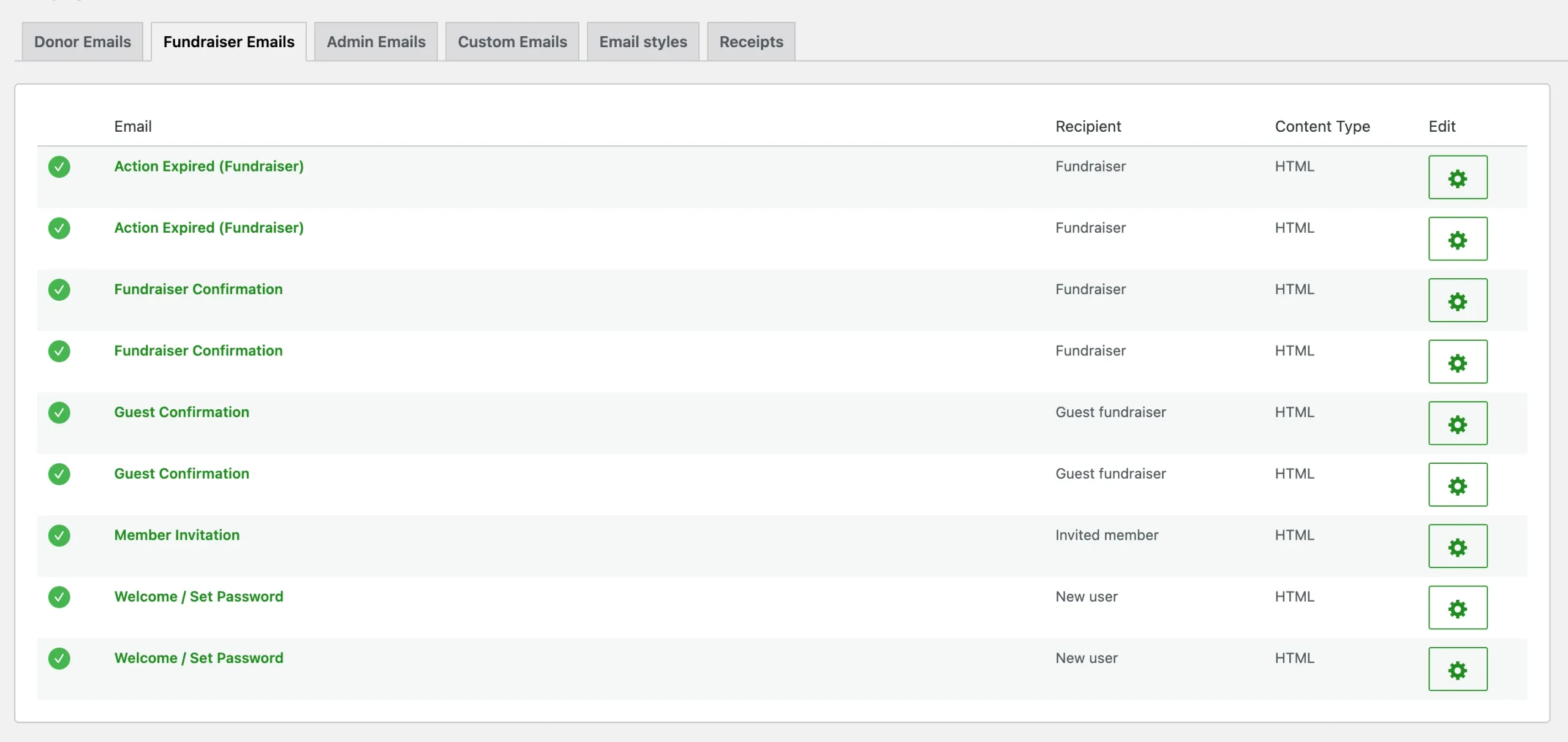
Fundations seeds six system email templates the first time it runs and keeps them as get_fund_email posts. Each one has a stable key, a category, an on/off toggle, a subject, and an HTML (or plain-text) body.
| Key | Category | Trigger | Goes to |
|---|---|---|---|
donation_receipt | donor | Donation payment confirmed | Donor |
welcome | fundraiser | New account created via the wizard | New user |
fundraiser_confirmation | fundraiser | A registered user creates a page | Page creator |
guest_confirmation | fundraiser | A guest creates a page without an account | Guest email (includes a 30-day claim link) |
expiration_user | fundraiser | The page end date passes | Page creator |
expiration_admin | admin | An unclaimed page expires | Site admin |
The Emails screen groups these into tabs by category (Donor, Fundraiser, Admin), plus a Custom tab and a Branding tab. Pro adds its own tabs through a filter, which is how the PDF receipt settings appear there.
Tags instead of fixed placeholders
Every subject and body can contain tags wrapped in braces. They are resolved by Get_Fund_Email_Tags against whatever context the email has (a donation, an action, a user), so the same tag works across templates wherever the data exists.
Common tag families:
- Site:
{site_name},{site_url},{admin_email} - Donor:
{donor_name},{donor_first_name},{donor_email},{donor_phone},{donor_company},{donor_city},{donor_country} - Donation:
{amount},{currency},{donation_type},{donation_date},{payment_id},{payment_provider},{message},{products} - Action:
{action_title},{action_url},{action_goal},{action_raised},{end_date},{edit_url} - Campaign and team:
{campaign_name},{campaign_url},{team_name},{team_url} - Account:
{user_name},{first_name},{username},{email} - Custom field:
{cf_for any custom field on a form}
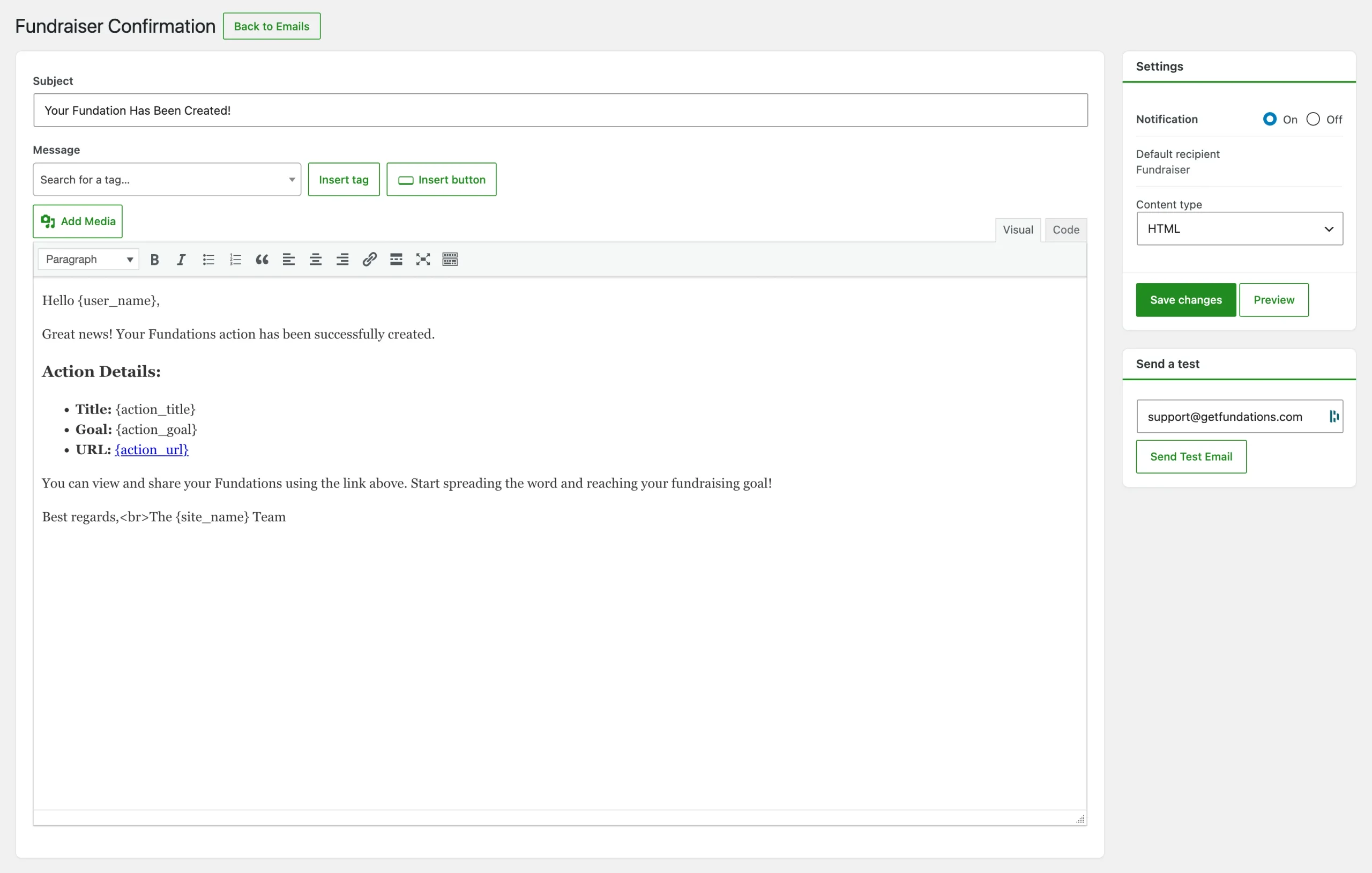
The editor has an Insert tag dropdown grouped by family, so you do not have to memorise the names. Custom-field tags are discovered automatically from your saved form templates.
Branding
The Branding tab sets the look every email shares:
| Option | Default | Purpose |
|---|---|---|
get_fund_email_logo | (empty) | Logo shown in the header. |
get_fund_email_text_color | #333333 | Body text color. |
get_fund_email_button_color | #4a9d44 | Button background. |
get_fund_email_button_text_color | #ffffff | Button text. |
get_fund_email_from_name | site name | From name on every email. |
get_fund_email_from_email | admin email | From and Reply-To address. |
Every email is sent as text/html; charset=UTF-8 unless its content type is set to plain text. A privacy-policy link is appended to the footer when one is configured.
Per-form notifications and confirmations
The six emails above are tied to the donation and account lifecycle. A form can also send its own notifications and show its own confirmations, with conditional logic and multiple recipients. This is a separate, larger system covered in its own page: see Form notifications and confirmations. When a form defines a payment_completed notification, it takes over the receipt for that form; otherwise the global donation_receipt is sent, so nothing regresses.
How to use it
- Go to Fundations > Emails.
- Open the Branding tab. Set the logo, colors, and From name and address.
- Open a category tab and pick an email to edit.
- Edit the subject and body. Use Insert tag to drop in dynamic values.
- Use Send test to mail yourself a sample.
- Save.
What you can and cannot do
You can switch any email on or off, write HTML or plain text, build CTA buttons in the editor, preview the result, send a test, and set a single From identity for all of them.
You cannot send a different From address per system email from this screen. For low-level control use the standard WordPress wp_mail_from and wp_mail_from_name filters. The custom-template tab (adding brand new email types) is a Pro capability; the free plugin manages the seeded system emails.
Troubleshooting
Test emails never arrive. Fundations uses wp_mail(). If core WordPress emails are not arriving either, install an SMTP plugin and try again.
A tag prints literally. The tag is resolved only when its data is present in that email’s context. A donation tag in the welcome email has nothing to resolve against. Check that the tag belongs to the email you are editing.
The guest claim link is expired. The claim token is valid for 30 days from page creation. After that an admin transfers ownership by hand.
A system email reappeared after I deleted it. System templates are reseeded if missing and cannot be deleted, only switched off. Only custom templates can be removed.
Developer reference
Filters and actions
| Hook | Type | Notes |
|---|---|---|
get_fund_email_definitions | filter | Add new system email definitions (Pro uses this). |
get_fund_email_tags | filter | Register new tag families for Get_Fund_Email_Tags. |
get_fund_email_tabs | filter | Add a tab to the Emails screen; render it with the get_fund_email_tab_ action. |
get_fund_email_attachments | filter | Add attachments to any send. Receives the running array and a context with the email_key (or event for per-form). This is the seam the Pro PDF receipt hooks into. |
get_fund_email_recipients | filter | Adjust the resolved recipient list before send. |
Sending an email in code
Get_Fund_Email_Manager::send( 'donation_receipt', $donor_email, array(
    'donation_id' => $donation_id,
    'action_id'   => $action_id,
) );
send() renders the stored template, resolves its tags from the context, applies get_fund_email_attachments, and calls wp_mail(). The donation receipt context now carries donation_id, which is what lets the Pro PDF receipt look up the donation and attach a file.